 Sandspit
Core Workflows
Bulk Operations
Save time by editing multiple records at once. Sandspit's bulk operations let you update fields and respond to workflows for many items simultaneously.
Selecting Multiple Items
Before you can perform bulk operations, you need to select the records you want to modify.
Selection Methods
- Click checkbox — Select individual rows using the checkbox column
- Shift+Click — Select a range of consecutive rows
- Ctrl/Cmd+Click — Add individual rows to your selection
- Select All — Use the header checkbox to select all visible rows
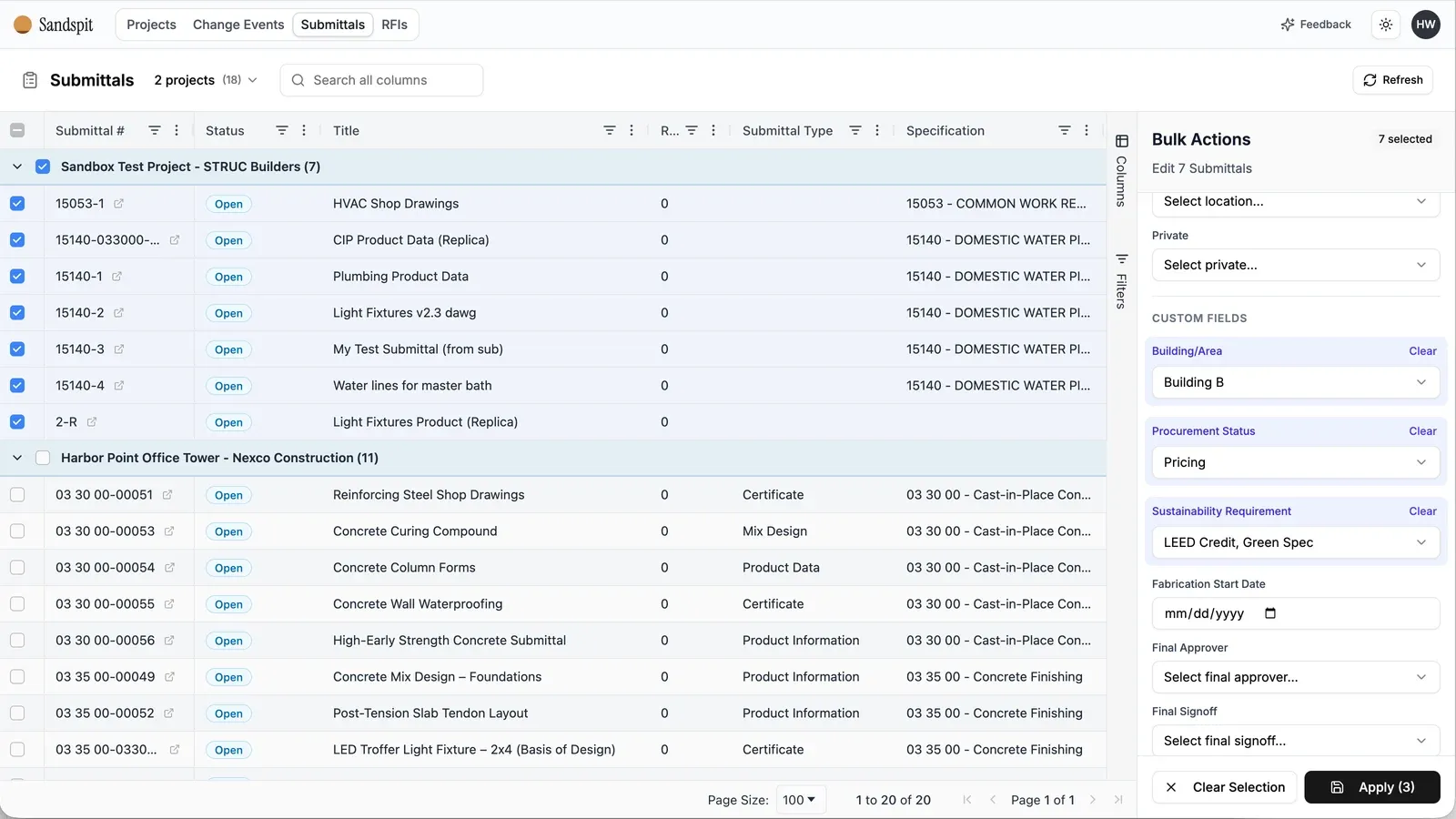
The toolbar shows how many items are selected. Selected rows are highlighted in the grid.
Filter First
Apply filters before selecting. This makes it easy to select all matching items with the "Select All" option.
Bulk Edit Custom Fields
Update field values for multiple records at once:
- Select the records you want to update
- Click Bulk Edit in the toolbar
- Choose the custom field to modify
- Enter the new value
- Click Apply
Sandspit applies the change to eligible selected records and syncs reviewed updates back to Procore.
Supported Field Types
| Field Type | Bulk Edit Support |
|---|---|
| Text | ✓ Set same value for all |
| Dropdown | ✓ Select from available options |
| Date | ✓ Set same date for all |
| Checkbox | ✓ Check or uncheck all |
| Number | ✓ Set same number for all |
Permissions Required
You can only bulk edit records you have edit access to in Procore. Items you can't edit will be skipped.
Bulk Workflow Responses
Respond to workflow steps for multiple records simultaneously:
- Select records that need your response
- Click Bulk Respond in the toolbar
- Choose your response (Approved, Rejected, etc.)
- Add optional comments
- Attach any necessary files
- Click Submit Response
Response Types
Available response types depend on your project's configuration in Procore, but typically include:
- Approved
- Approved as Noted
- Rejected
- Revise and Resubmit
- Reviewed
- For Information Only
Workflow Requirements
Bulk respond only works for records where you're an active approver and it's your turn in the workflow.
Best Practices
Use Filters Effectively
Set up filters to show exactly the items you want to modify before selecting. This reduces errors and makes "Select All" more useful.
Review Before Applying
Always review the count of selected items before applying bulk changes. The confirmation dialog shows exactly how many items will be affected.
Start Small
If you're new to bulk operations, start with a small batch to verify the results before processing larger sets.
Check Results
After a bulk operation, review a few of the modified items to ensure the changes were applied correctly.