 Sandspit
Getting Started
Quick Start
This guide walks you through connecting Sandspit to Procore, importing your first projects, and choosing where to work: web app, Procore embedded app, side panel, or Excel add-in.
Prerequisites
Before you begin, make sure you have:
- A Procore account with access to at least one project
- Submittal and/or RFI Tool permissions in Procore (Read or higher)
- A modern web browser (Chrome, Firefox, Safari, or Edge)
Permissions
Sandspit inherits your Procore permissions. You'll only see projects you have access to in Procore.
Choose an install method
Start by installing Sandspit from the Procore App Marketplace:
- Install from the Procore App Marketplace — Sandspit runs inside Procore as an embedded app. Best if your company admin manages third-party apps through Procore, or if you want Sandspit available alongside other Procore tools.
Either way, Sandspit uses OAuth 2.0 for secure authentication — we never store your Procore password, and you can revoke access at any time from your Procore account settings.
Install from the Procore App Marketplace
This option installs Sandspit as an embedded app inside Procore. You'll need Procore admin permissions to install third-party apps. If you're not an admin, ask your Procore admin to complete these steps.
Step 1: Install the app in Procore
In Procore, open the App Management area from the company admin tools and click Install App.
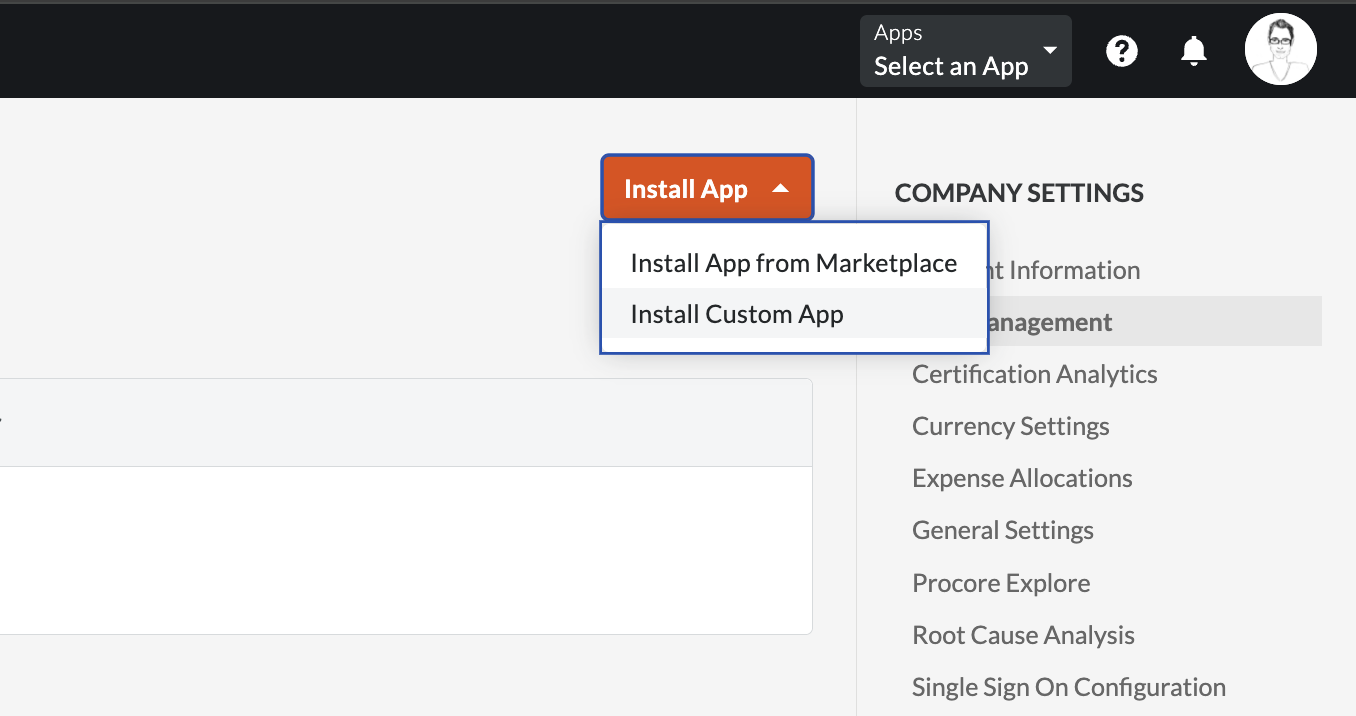
Step 2: Enter the Sandspit application ID
Procore will prompt you for an application ID. Paste in the Sandspit application ID:
9187231a-07d7-4ae2-bd7b-d705ee265b1d 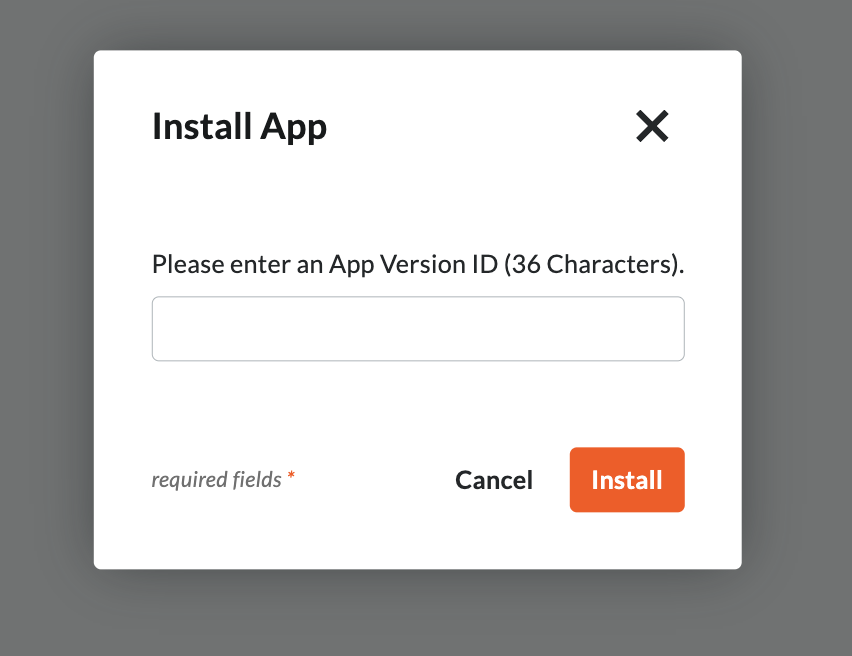
Procore will show the permissions Sandspit is requesting. Review them and click Install to authorize the connection.
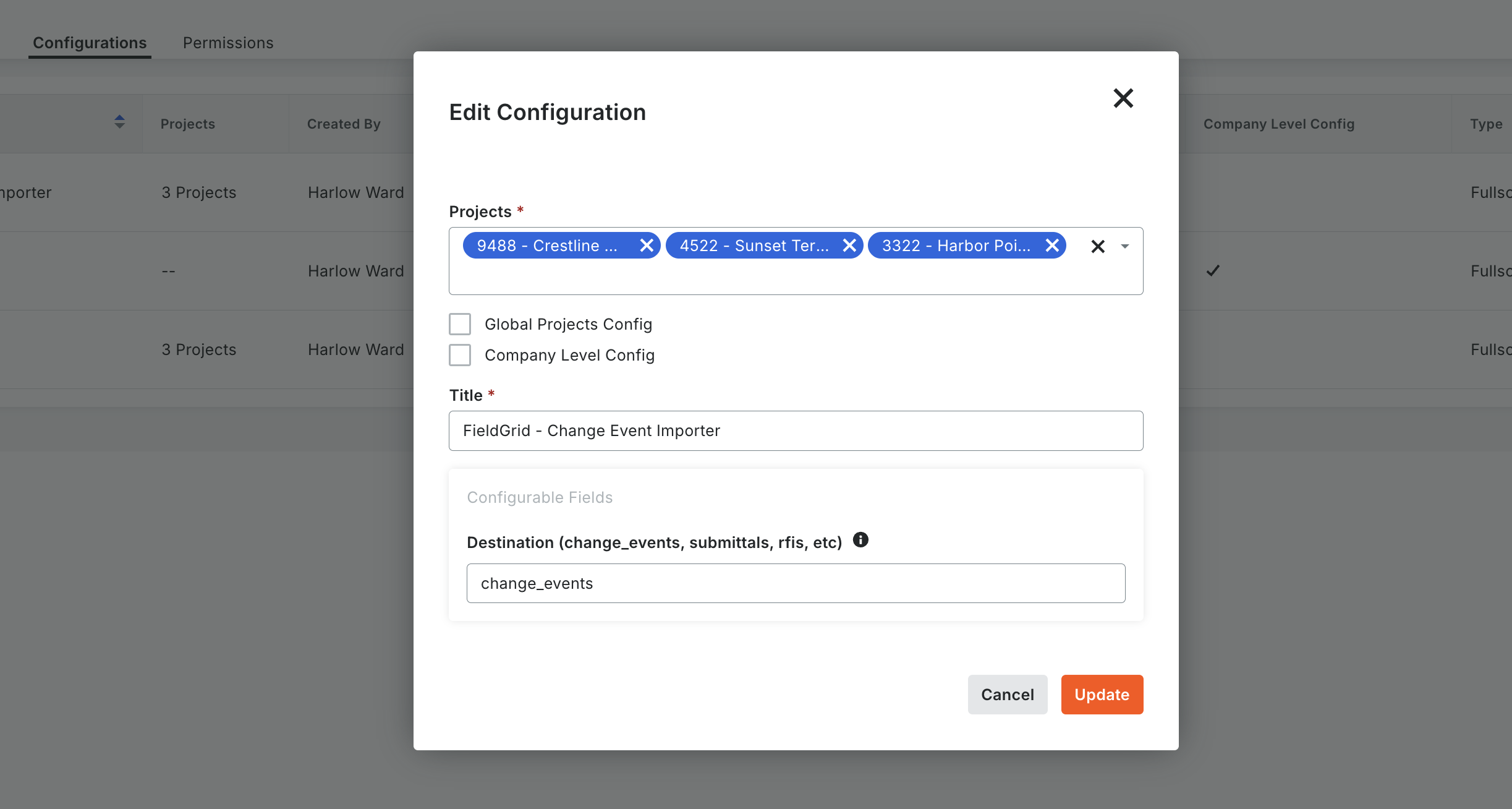
Step 3: Configure the Sandspit link
After installation, configure the Sandspit link so it appears in your Procore navigation. Once saved, Sandspit appears in Procore for users who have the required app and project access.
You're done installing
Open Sandspit from your Procore navigation and jump to Import your first projects below.
Import your first projects
Once Sandspit is installed, pick the projects you want to work with. Sandspit shows every Procore project you have access to.
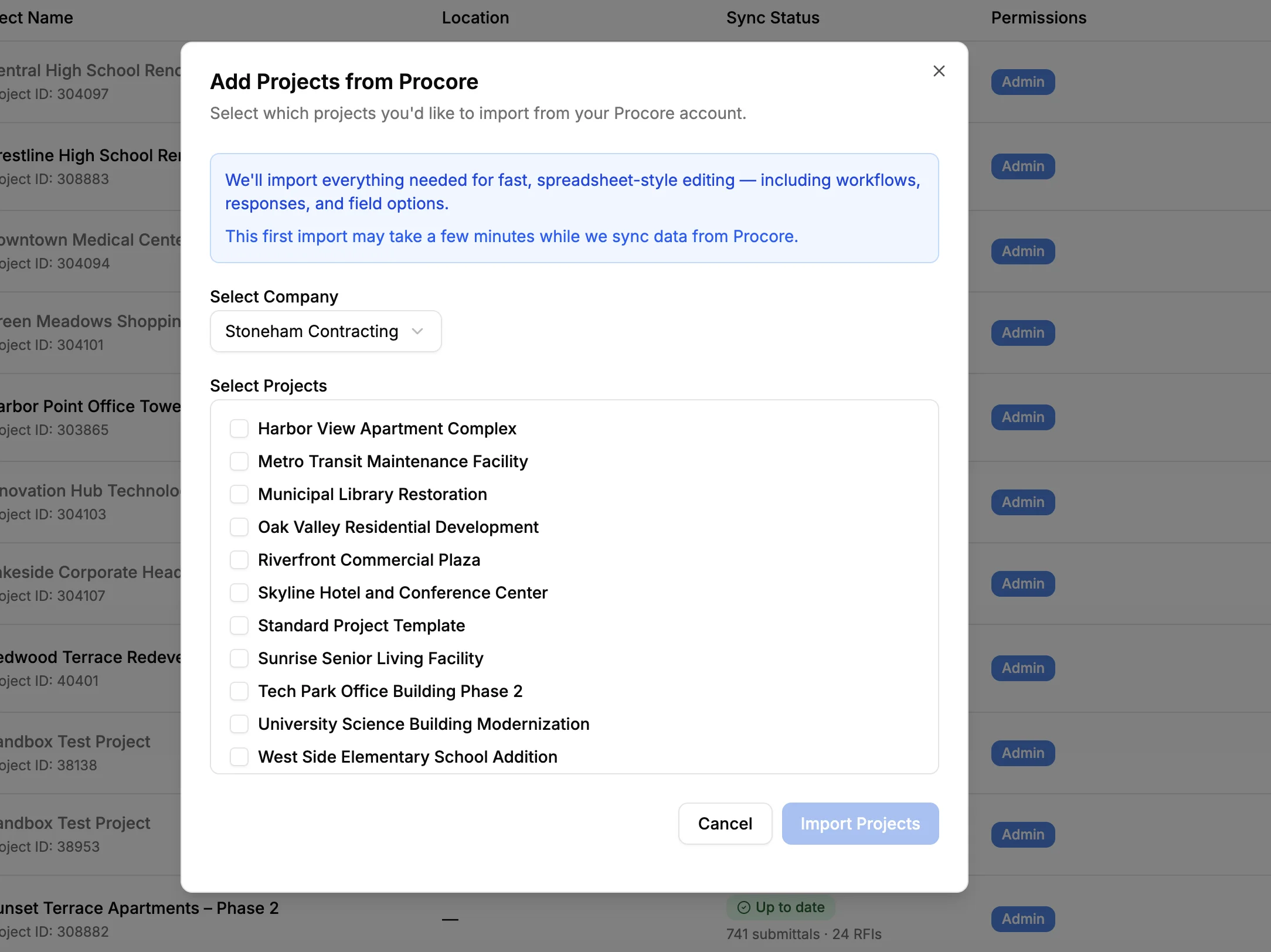
- Browse the list of available projects
- Click on a project to select it for import
- Wait for the initial sync to complete (usually 1-2 minutes)
Start small
We recommend starting with 2-3 projects to familiarize yourself with the interface. You can always add more projects later.
Once imported, Sandspit keeps project data synced with Procore. Sync timing and manual refresh options depend on the workflow and project settings.
Choose where to work
Sandspit supports the same core data-cleanup model across several places your team already works:
- Standalone web app — Best for project selection, broad grid review, saved views, settings, and admin workflows
- Procore embedded app — Best when users want Sandspit inside Procore project context
- Procore side panel — Best for focused validation and cleanup without leaving the active Procore flow
- Excel add-in — Best when change event preparation starts in a workbook
Explore the spreadsheet workspace
With your projects imported, Sandspit opens into a unified grid view. The grid is the working layer above Procore: sort and resize columns, filter across projects, review record details, and make updates without moving through one Procore screen at a time.
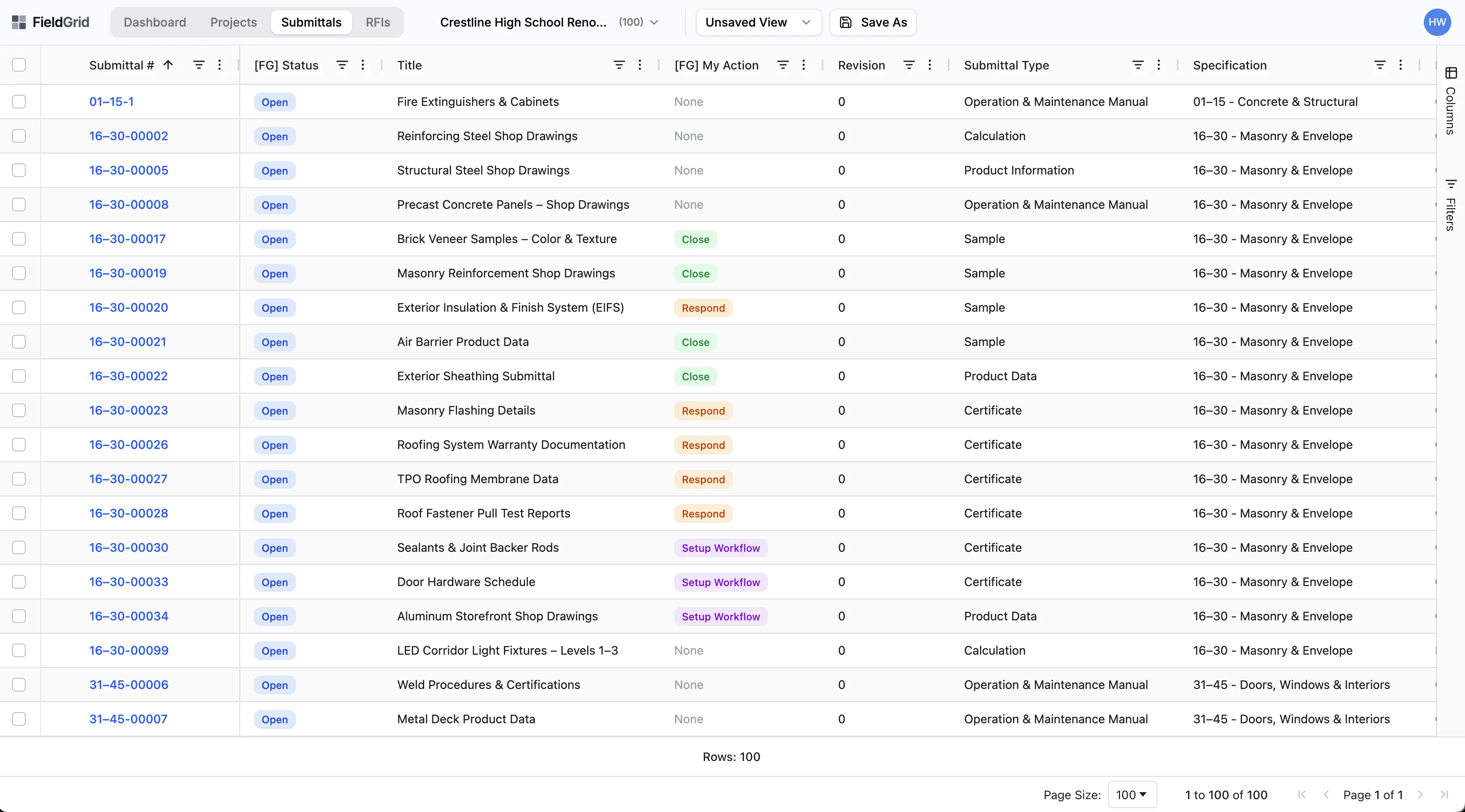
Working in the grid
- Sort columns — Click any column header to sort
- Resize columns — Drag column borders to adjust width
- Show/hide columns — Use the column selector in the toolbar
Filtering
- Quick filters — Use the filter bar to narrow results
- Search — Type in the search box to find specific records
- Save filters — Create saved filter sets for common views
Taking action
- View details — Click a record to see full details
- Respond to workflow — Submit approvals or rejections
- Bulk edit — Select multiple items to edit at once
Next steps
Now that you're set up, explore these guides to get the most out of Sandspit:
- Where Sandspit Runs — Choose between the web app, embedded app, side panel, and Excel add-in
- Change Event Imports — Stage PDF and spreadsheet inputs before syncing to Procore
- Working in the Grid — Learn how to view and manage project records in Sandspit
- Advanced Filtering — Filter by project, status, assignee, due date, and spec section
- Bulk Operations — Edit multiple items at once
Have questions? Reach out to our support team at [email protected].